-
Purpose
This guide will help you enable secure, limited access for your agents to the IDXAddons platform. By generating a unique password for each agent, you ensure they have access to only the specific tools and information you’ve authorized.
-
Access the Platform
Log in to your IDXAddons platform account
In the main menu, select the App option.
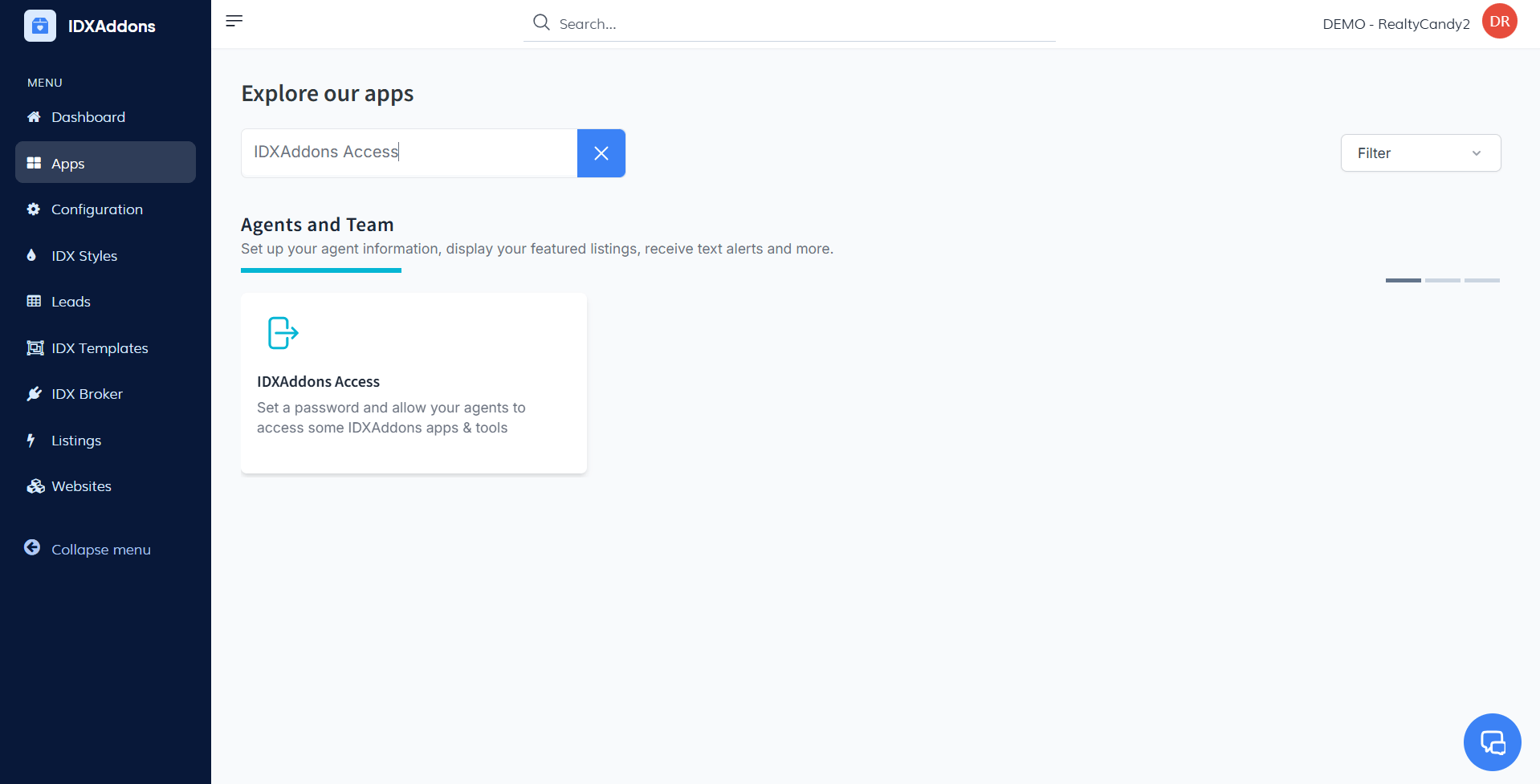
-
Generate a Password for Your Agent
When you open the app, you'll see the Setup tab. Please note that this app is only available for IDX Office accounts.
Access the Agent ListGo to the list of agents, where you’ll see all agents currently available.
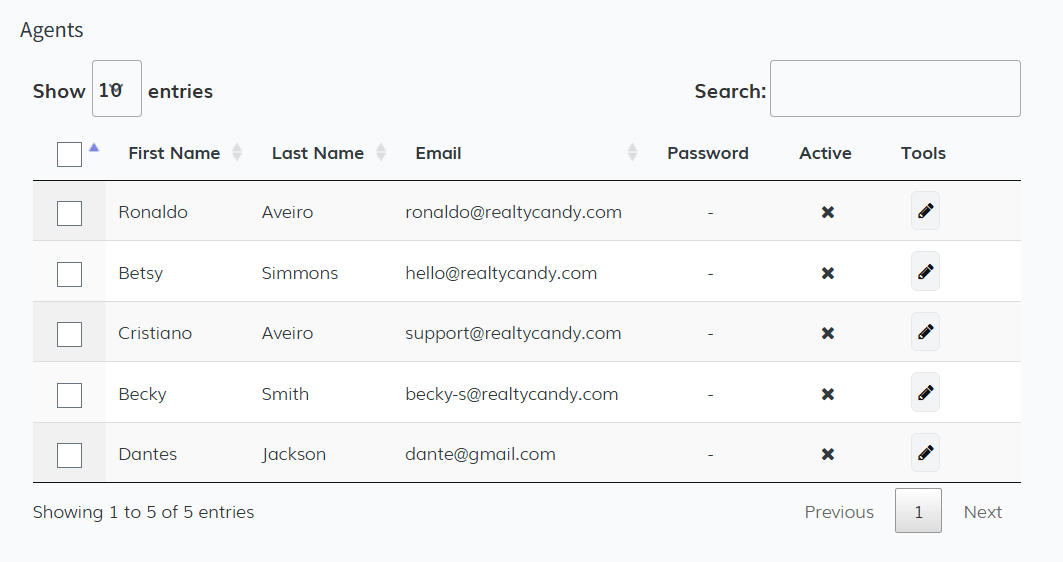 Select the Agent
Choose the agent who needs access, then click on the pencil icon next to their name.
- In the popup that appears, turn on the "Active" switch to enable access for this agent.
- Click "Generate Password" to create a new login password for the agent.
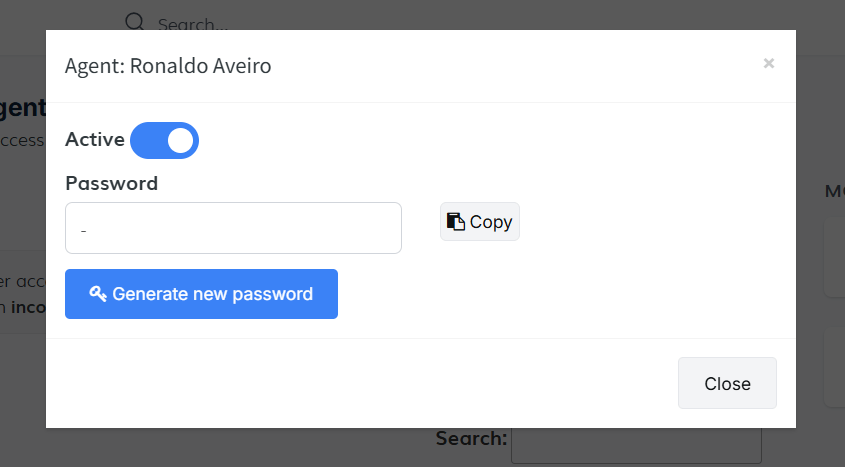
After the password is generated, click "Copy" to save it to your clipboard for easy sharing.
-
Send the Password to Your Agent
Your agent will need to log in https://idxaddons.com/agent-login and enter the password. If you want to log in and you already have an IDXAddons session, you would need to do it using an incognito window.
IMPORTANT: If you want to test the agent access and you already have an IDXAddons session, use an incognito window.
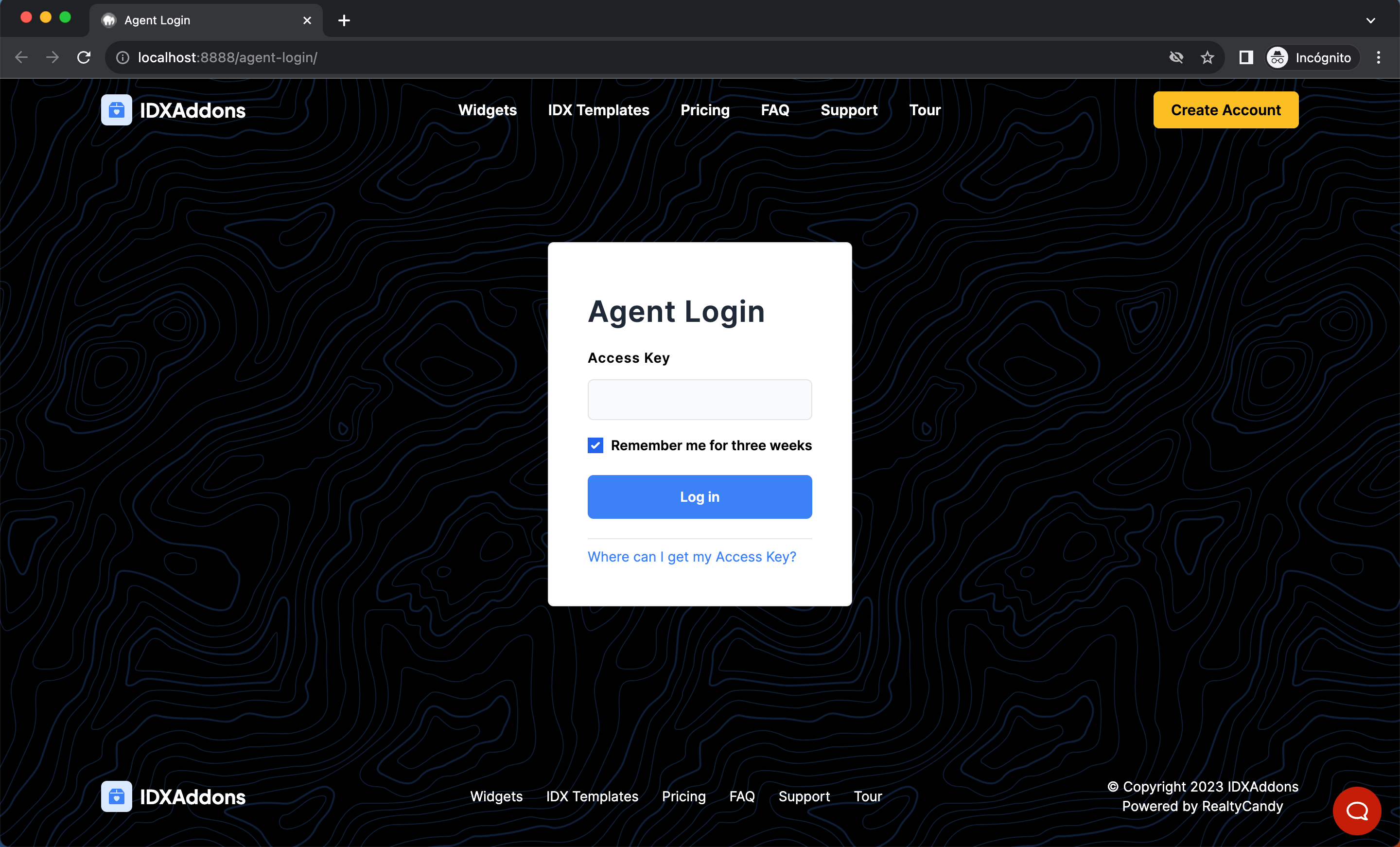
Agents will have limited access to IDXAddons.
-
Agent Dashboard Overview
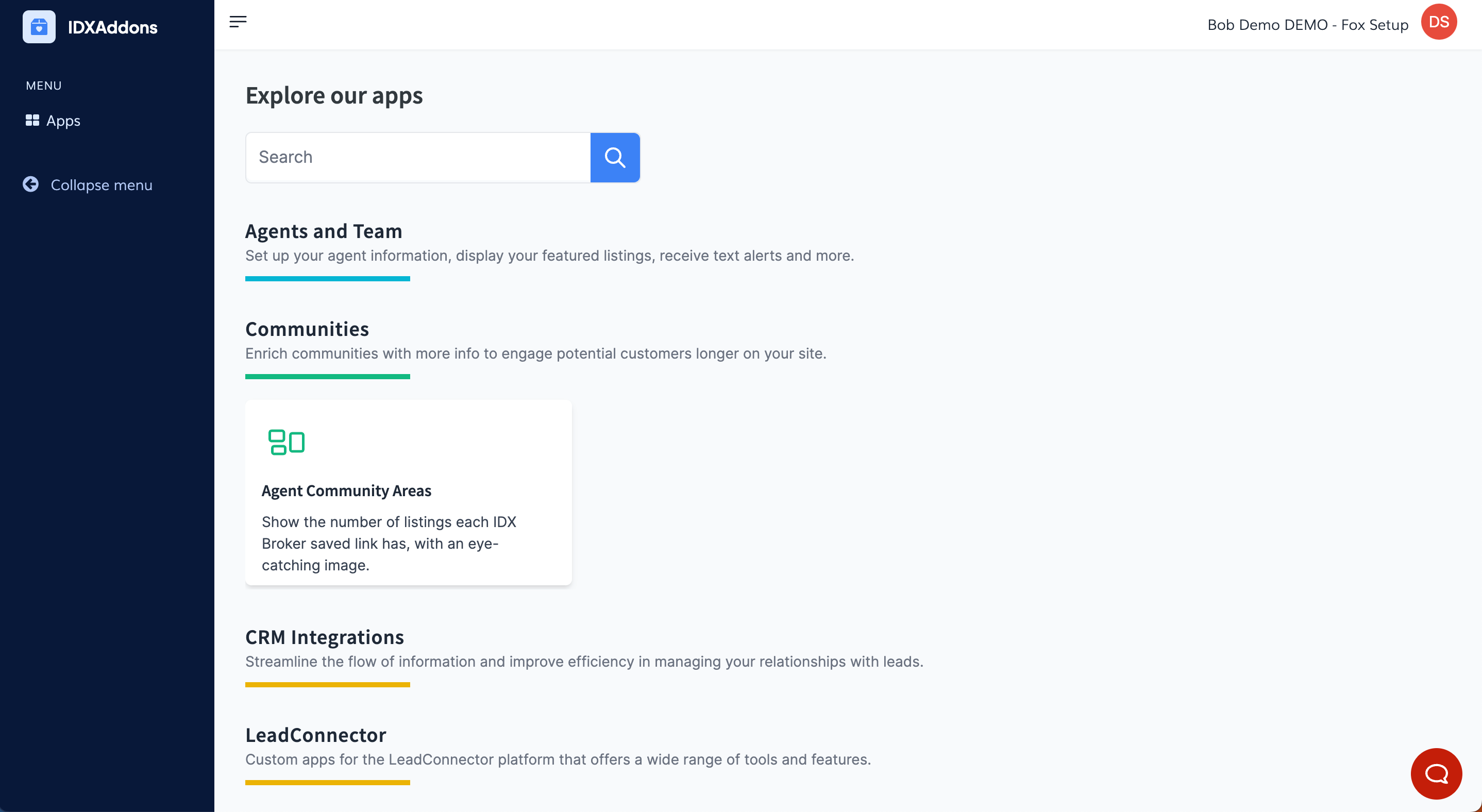
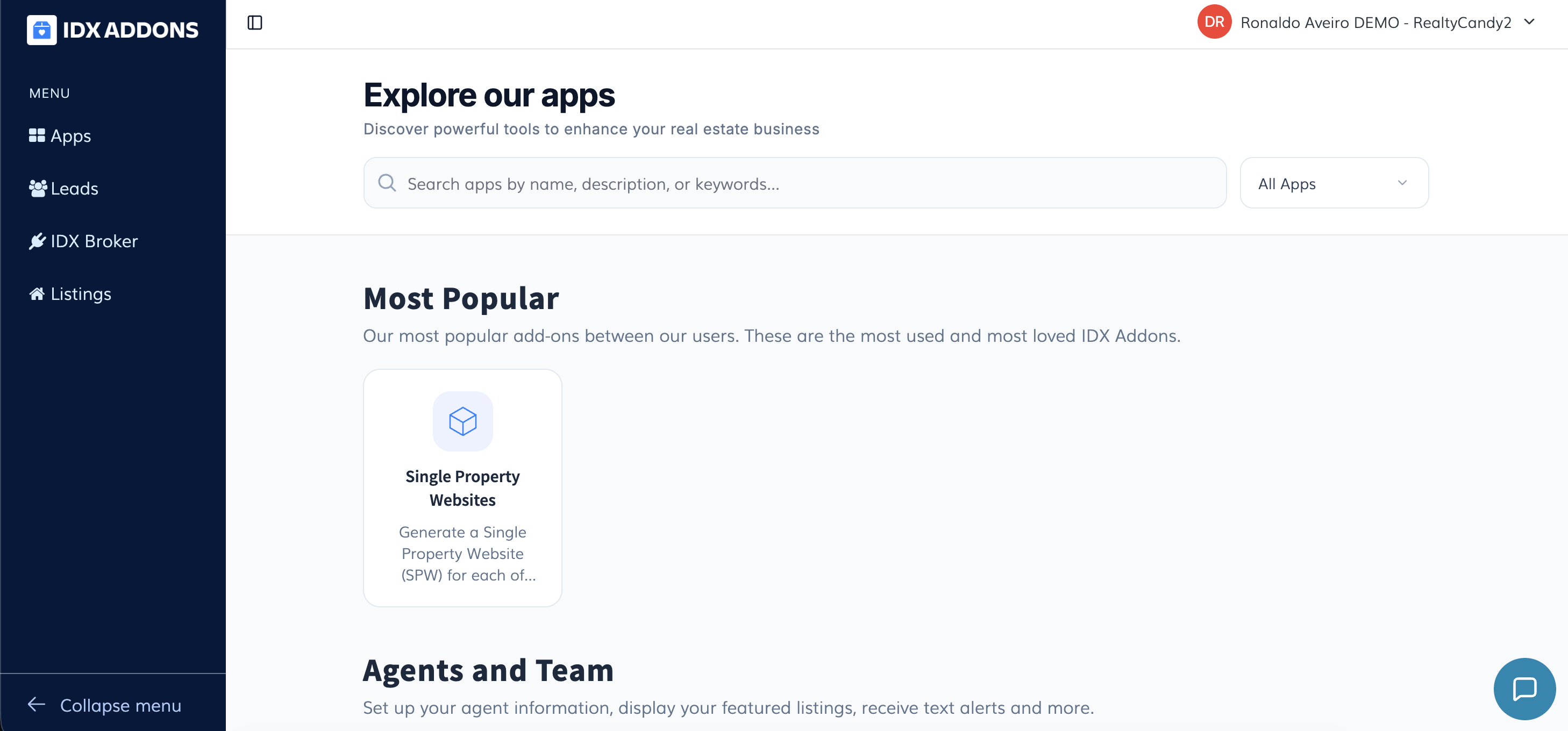
Once the agent logs into the dashboard, the first menu option available is Apps. In this section, agents can view all the apps they have permission to access. Available apps may include:
- Single Property Websites
- Agent Community Areas Widget
- Comparative Market Analysis
- Omnisearch Selector
- Agent Plunk Home Valuation
- Agent Testimonials Widget
- Popular Listings
- Social Media Image Creator
Apps are organized by category, and a search bar is provided to help agents quickly find a specific tool.
 Leads Section
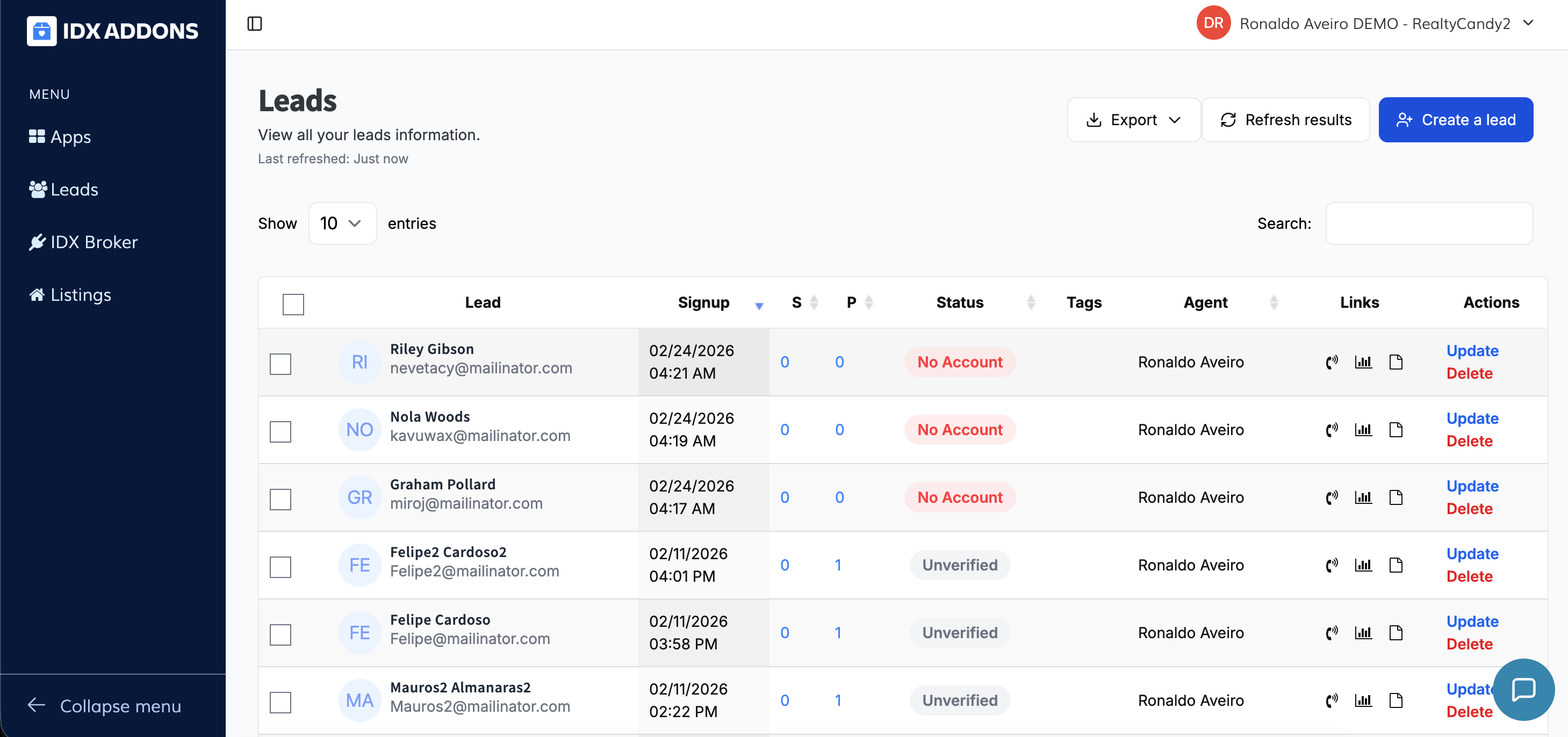
In the Leads menu option, agents can access all information related to their leads. From this dashboard, they can update, delete, create, export, and refresh lead records.
 IDX Broker Section
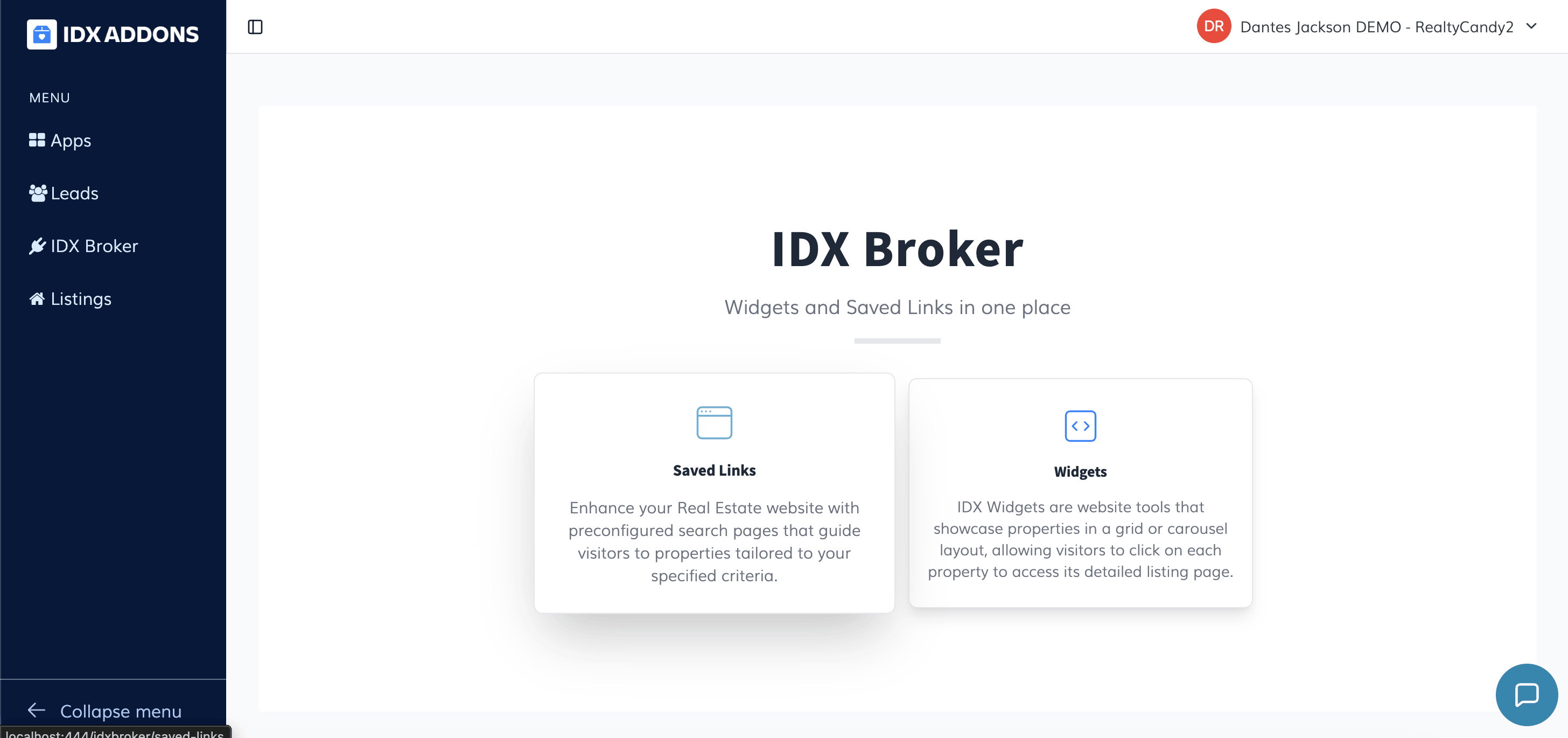
The IDX Broker menu includes two sections:
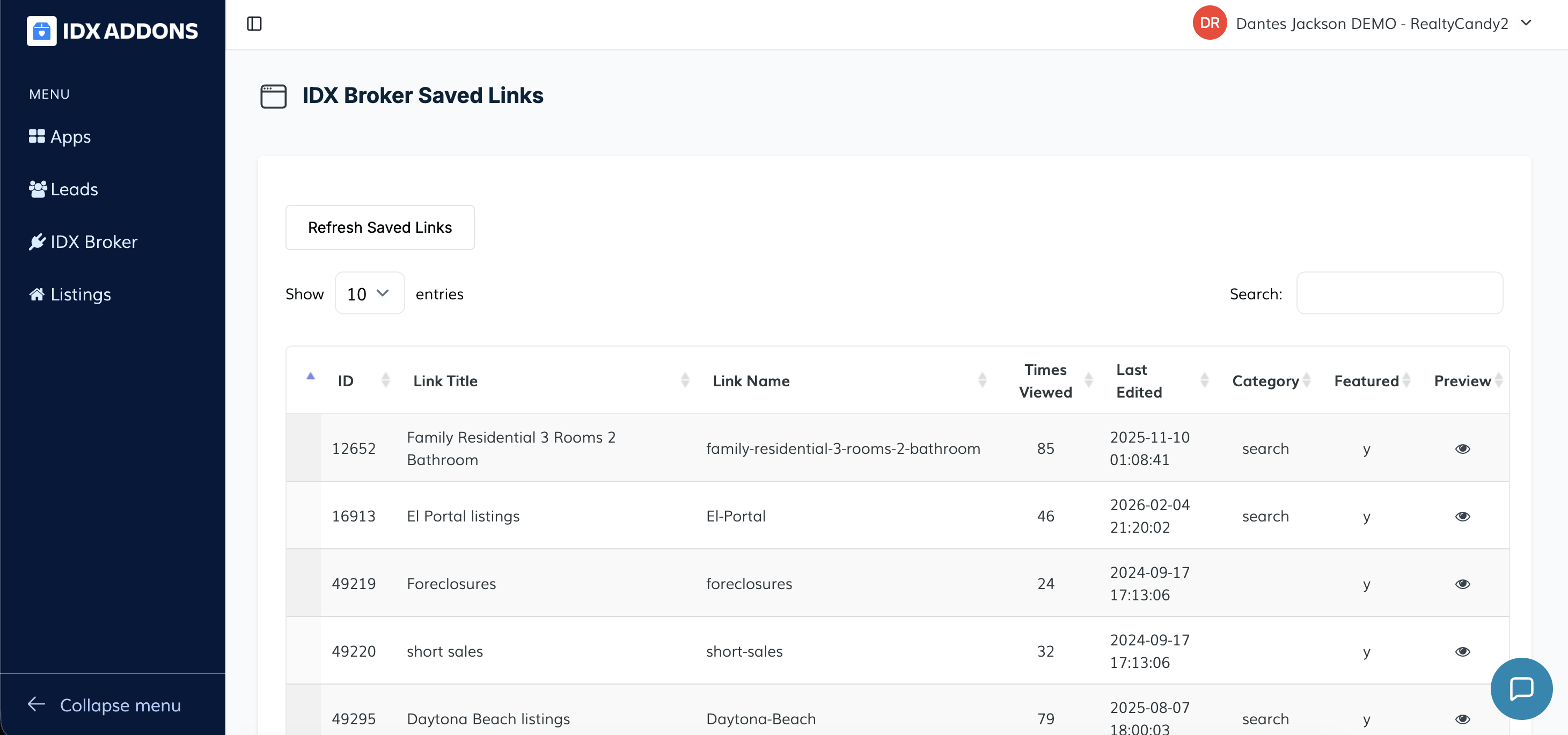
- Saved Links: Displays all saved links associated with the account. Agents can refresh the list to load the most recent links.
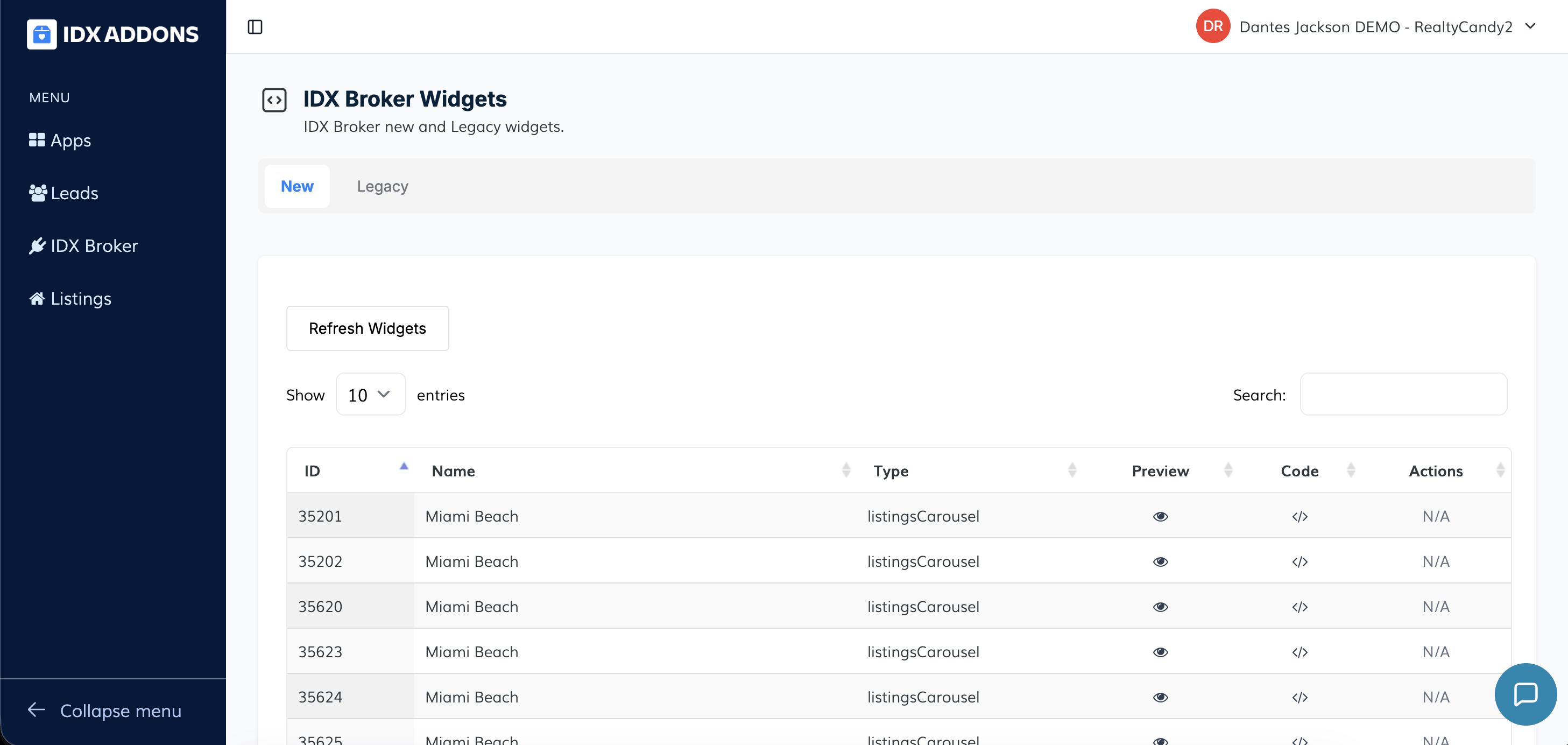
- Widgets: Shows all available IDX Broker widgets, including both new and legacy versions.
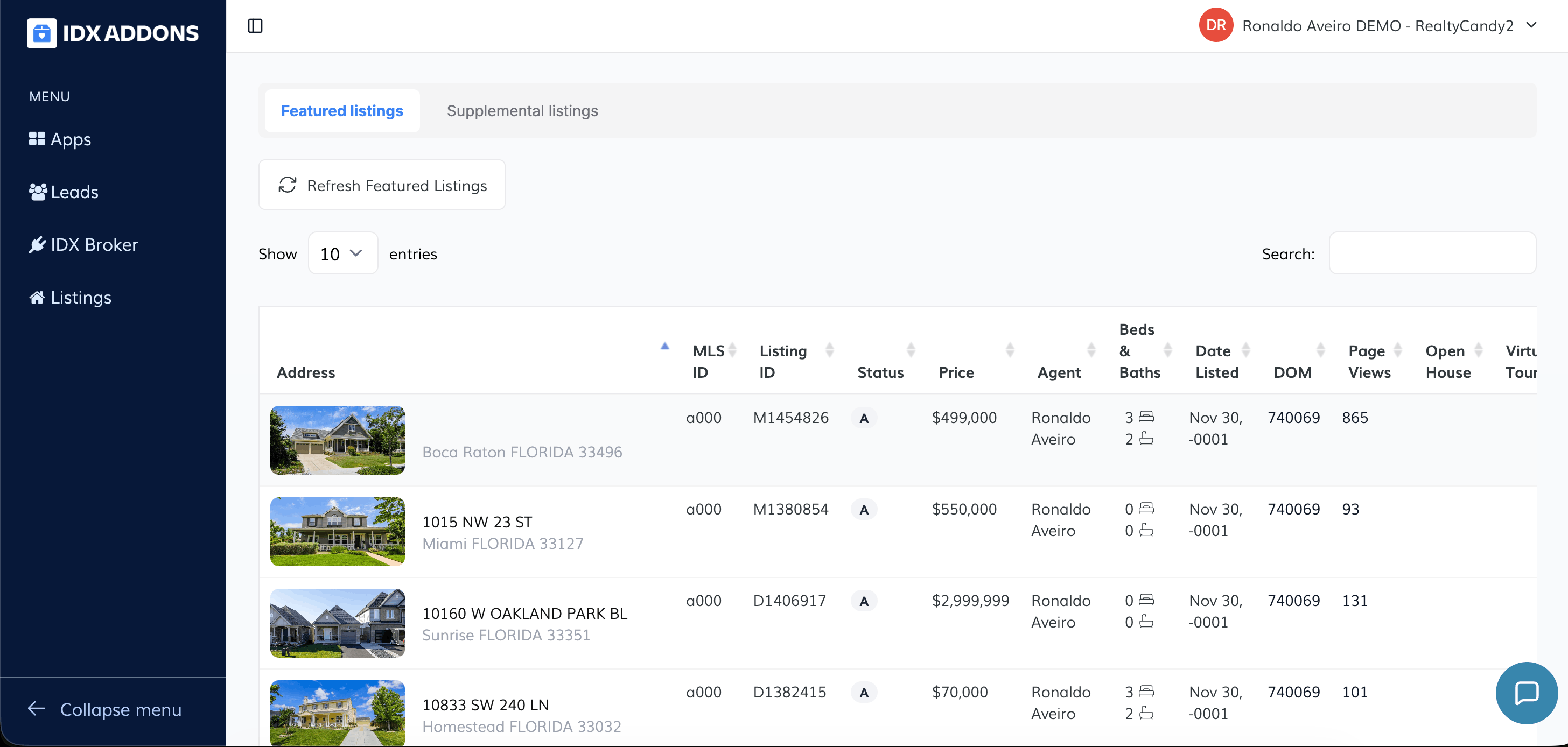
Under Listings, agents will find multiple tabs:
- Featured Listings: Displays all featured listings created, including detailed information. Agents can create a Single Property Website or assign a Buyer Agent Commission.
- Supplemental Listings: Contains all supplemental listings that have been created. From this dashboard, agents can also create a supplemental listing website.
- Manage Supplemental Listings: Redirects the agent to IDX Broker to manage supplemental listings directly.