-
Setup Tab
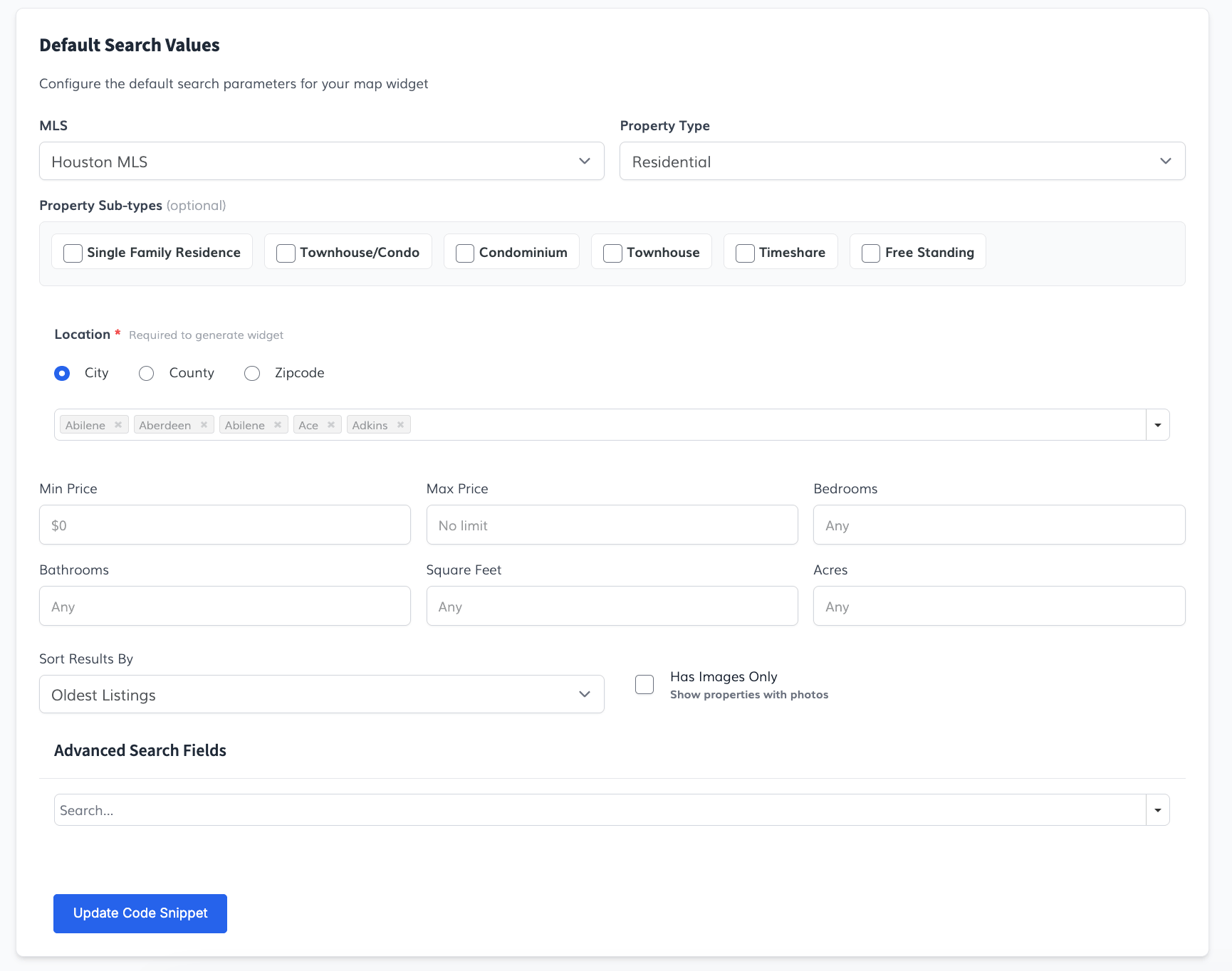
Under the Setup tab, choose default search filters (such as MLS, Property Type, Price Range, Location, Bedrooms/Bathrooms, and Sorting). When settings are adjusted, the code snippet will update automatically.
-
Style Tab
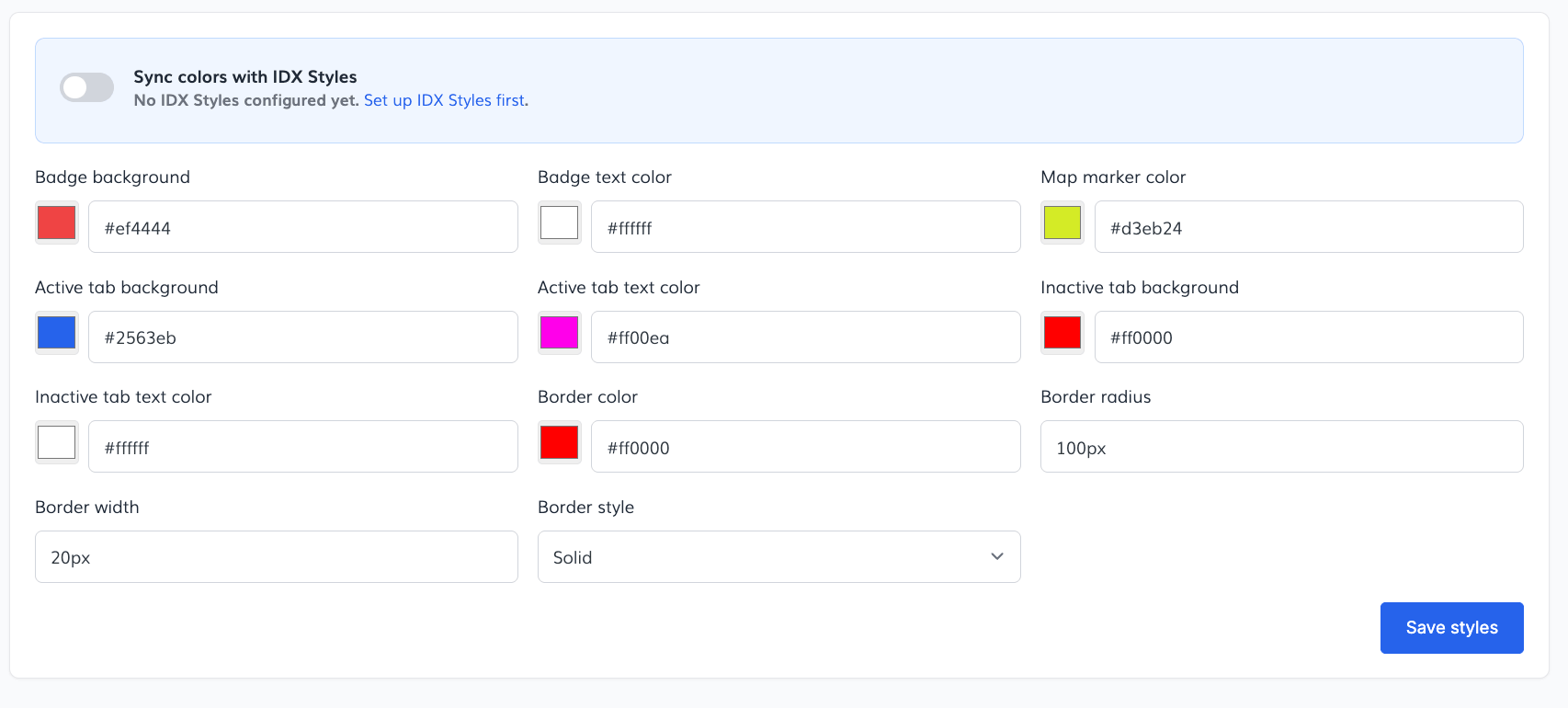
Under the Styles tab, configure custom colors for metadata/status badges, map markers, view tabs (active/inactive), border width, border color, border style, and corner radius. If you turn on "Sync colors with IDX Styles", the widget styles will override automatically based on your global account branding.
-
Saved Widgets
Once you generate a Code Snippet, a "Save this configuration" box appears below it. Give your widget a name (e.g. "Miami Condos") and click Save to store that configuration.

Every widget you save shows up under the Saved Widgets tab, where you can revisit it at any time to view its embed code, edit its filters or styles, or delete it. This lets you build and maintain several widgets at once (for example, one per neighborhood or MLS) without losing track of any of them.

-
Embed Code
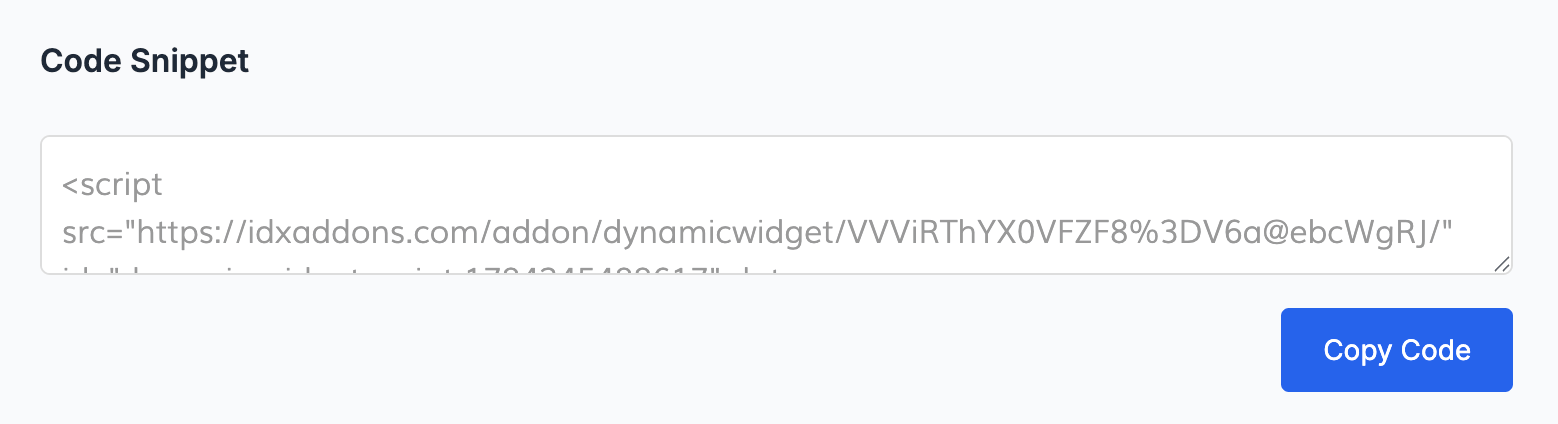
Copy the generated Code Snippet and paste it into any web page where you want the listings grid to appear.